Skip to main contentCreating a New Workspace
- Once signed up, access the app where you’ll be prompted to create a new workspace.
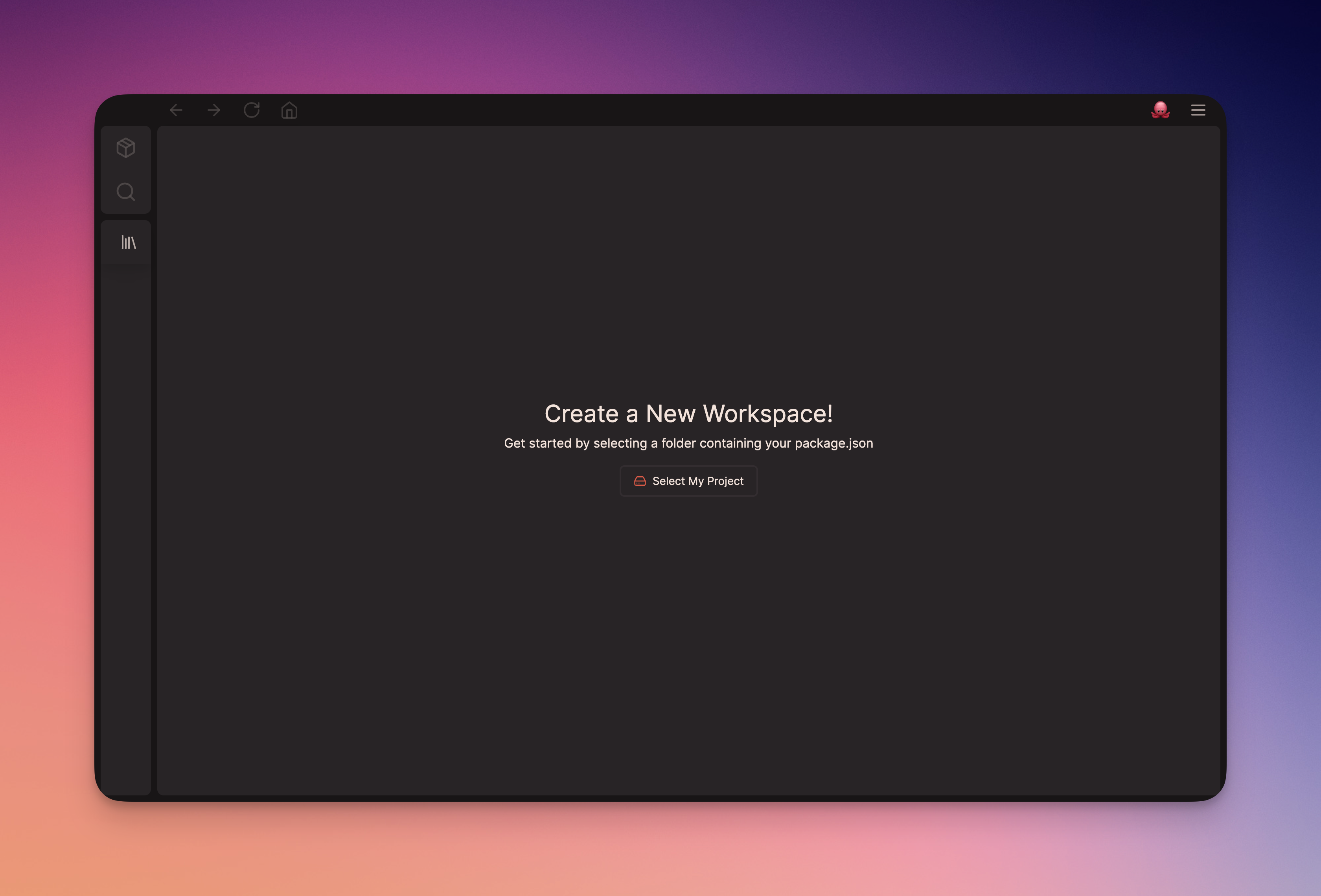
- Get started by uploading your project to Doctopus. Make sure to select a folder containing your package.json so the app can identify your Node dependencies and gather the corresponding documentation.
Selecting Your Packages
-
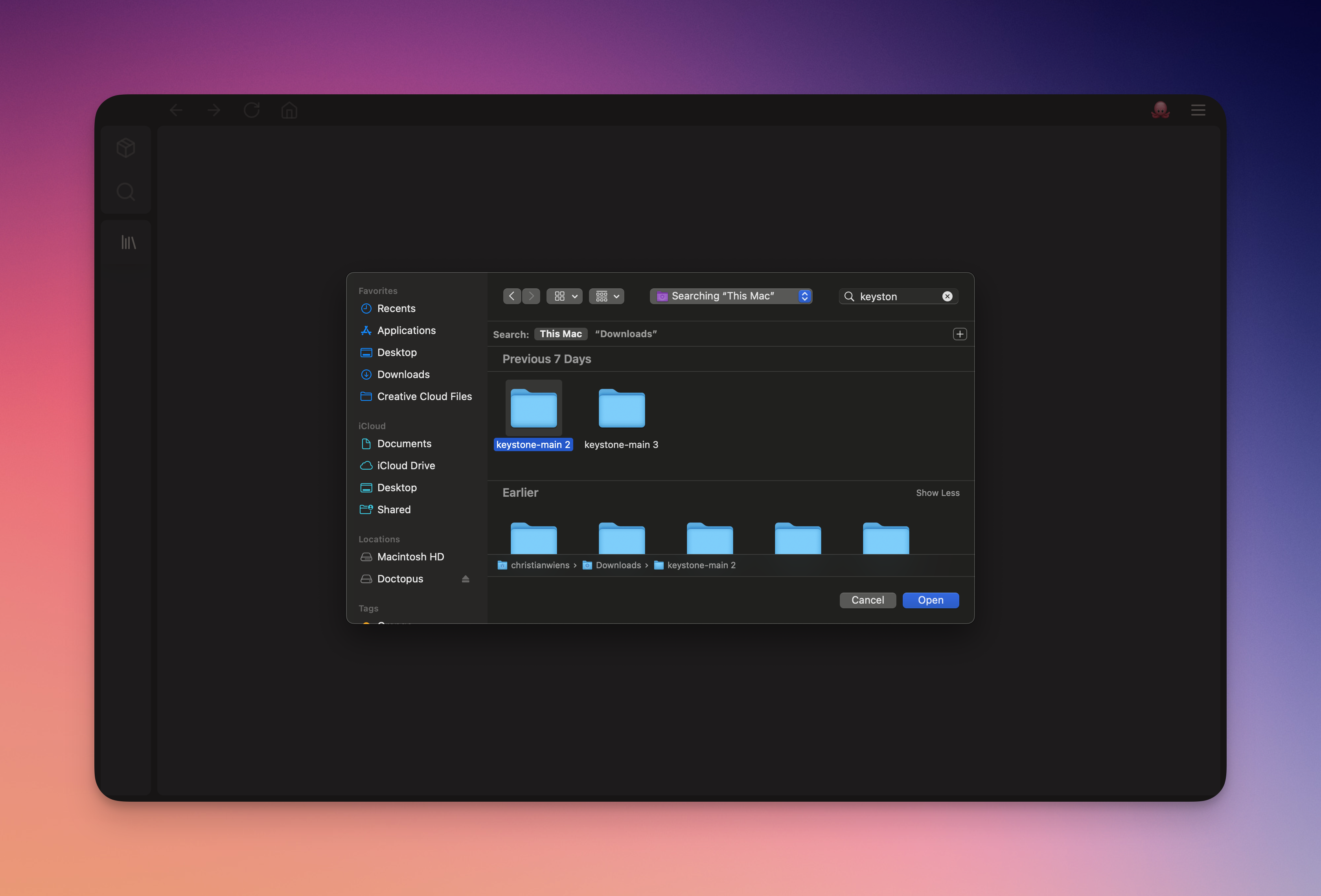
After uploading your project, a new window appears showing all detected packages.
-
Select or deselect packages to customize your Doctopus workspace.
-
Click “Get Started” to confirm your package selection and proceed.
-
At any time you can select or deselect packages from this menu to fit your current needs. Click “save changes” and the documentation for any packages you select will automatically appear on the left sidebar of the app now.
Navigating Your Doctopus Workspace
-
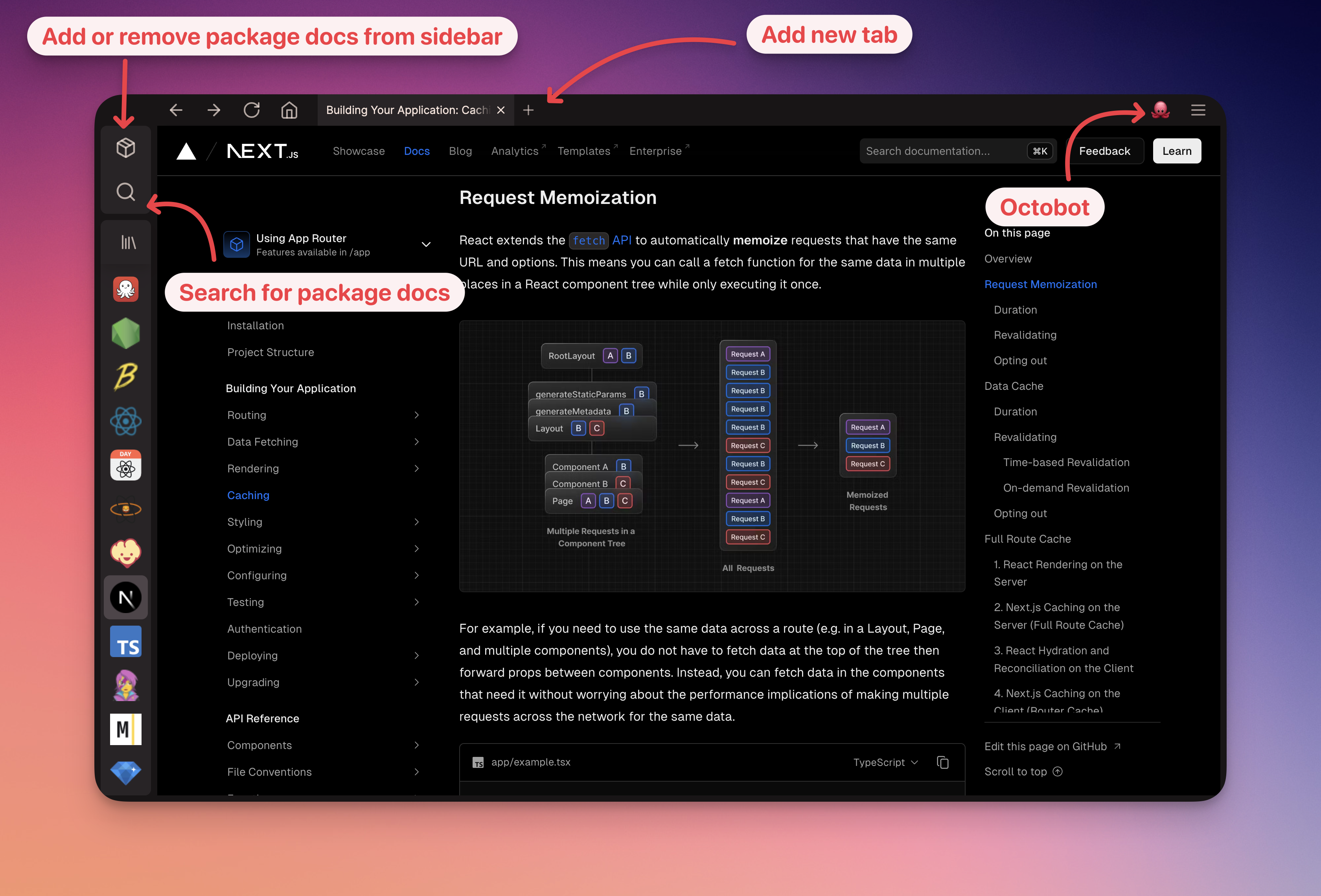
Your workspace is your hub within Doctopus, featuring a sidebar with all selected packages for quick access.
-
Navigate between packages by clicking their icons on the sidebar.
-
Open sub-pages within specific package docs in separate tabs. Easily switch between packages, and your tabs will be preserved.
-
In the top right corner you’ll find a button to activate the Octobot, as well as a Settings menu.
Hotkeys Guide
Here’s a quick guide to enhance your navigation and efficiency in our platform:
Search for Packages
Command + P: Use this hotkey to effortlessly search for packages you wish to add to the sidebar. This feature provides a fast and intuitive way to locate and manage your desired packages without navigating through menus.
Octobot Access
Command + O: This hotkey enables you to quickly open and close Octobot. It’s designed for rapid access, allowing you to toggle Octobot’s functionality with ease, streamlining your workflow.
Tab Management
Command + T: Open a new tab.Command + W: Close the current tab.
Tab Navigation
Command + Option + Right Arrow: Navigate right through tabs.Command + Option + Left Arrow: Navigate left through tabs.
Utilizing Octobot AI (In Development)
-
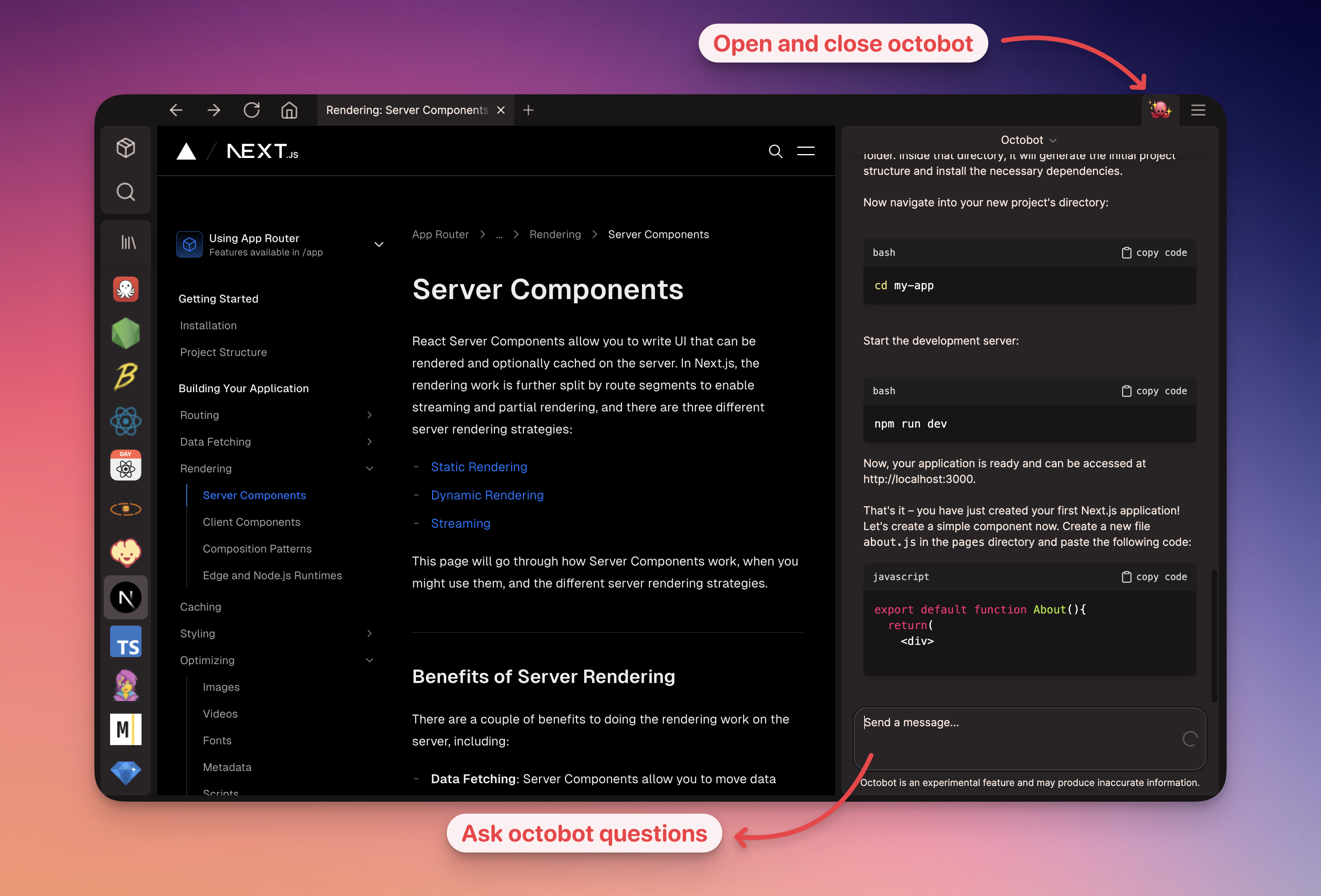
In the right sidebar of the app you will find Octobot, the Doctopus AI that uniquely understands your project and the documentation for any packages you’re using.
-
You can open and close the Octobot by selecting the 🐙 emoji in the top right of the window. When Octobot is active a ✨ will appear over the octopus.
-
You can use Octobot AI to ask questions, generate code examples, and much more.
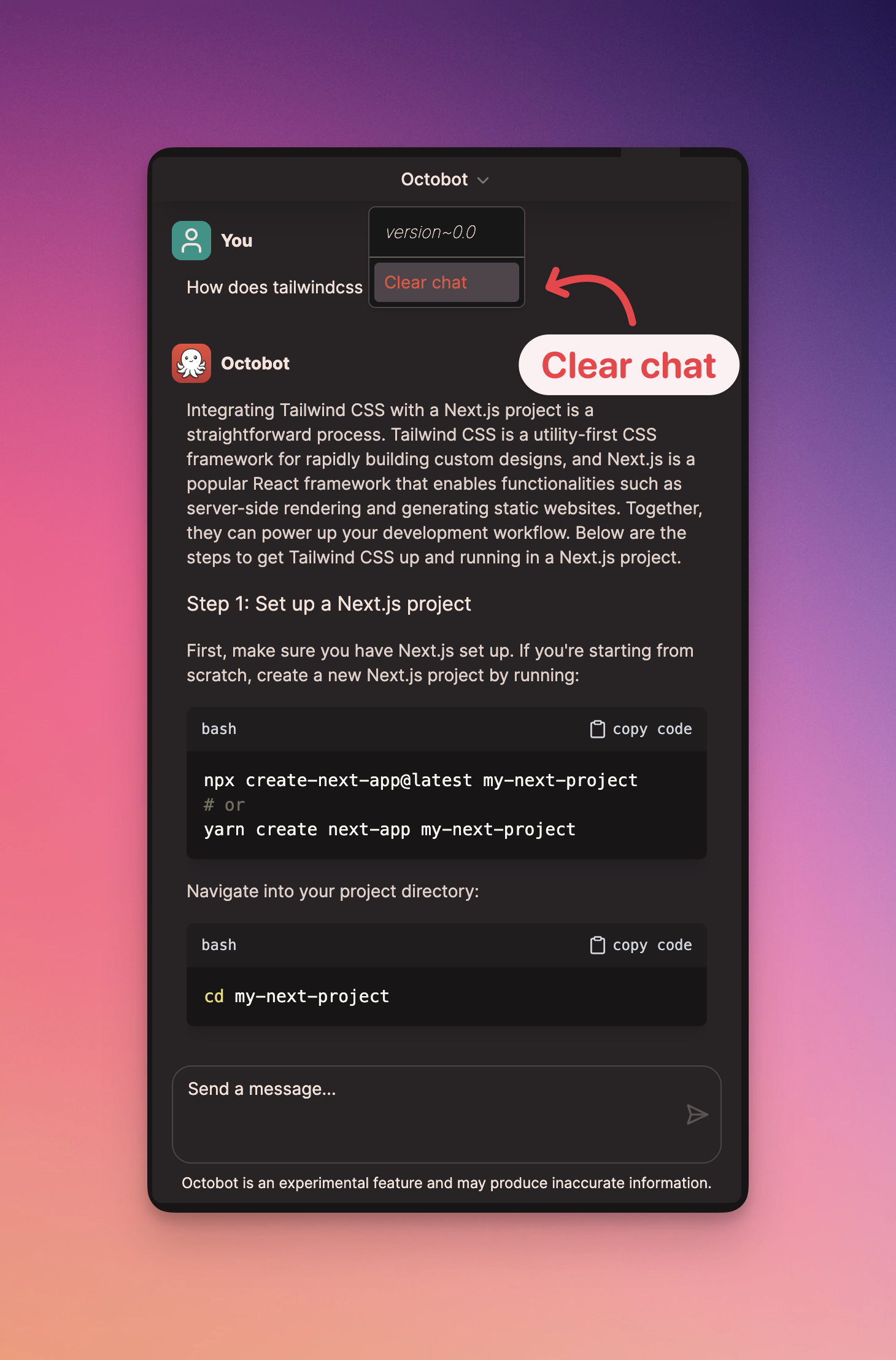
- To clear your current Octobot chat and start a new one, simply select the dropdown at the top of the chat window as shown below.
Note: Octobot is in early development and some features are unavailable in the current release.
Dive into your Doctopus workspace and experience the ease of managing NodeJS documentation tailored to your project’s needs. Enjoy the journey!